Marking up a Task List photo
You can draw directly on any photo attached to a Formis Task List item to show exactly what you mean: circle the cracked tile, point at the missing guardrail. Open the photo full-size, tap Markup, draw, and save. The original photo is kept unchanged, so the markup can always be told apart from what the camera captured.
Marking up a photo
- Open the Task List item and tap a photo in its photo strip to open it full-size.
- Tap Markup.
- Choose a pen color and width, then draw on the photo.
- Use Undo to remove your last stroke. For more complex callouts, markup can be organized into separate layers.
- Tap Save.
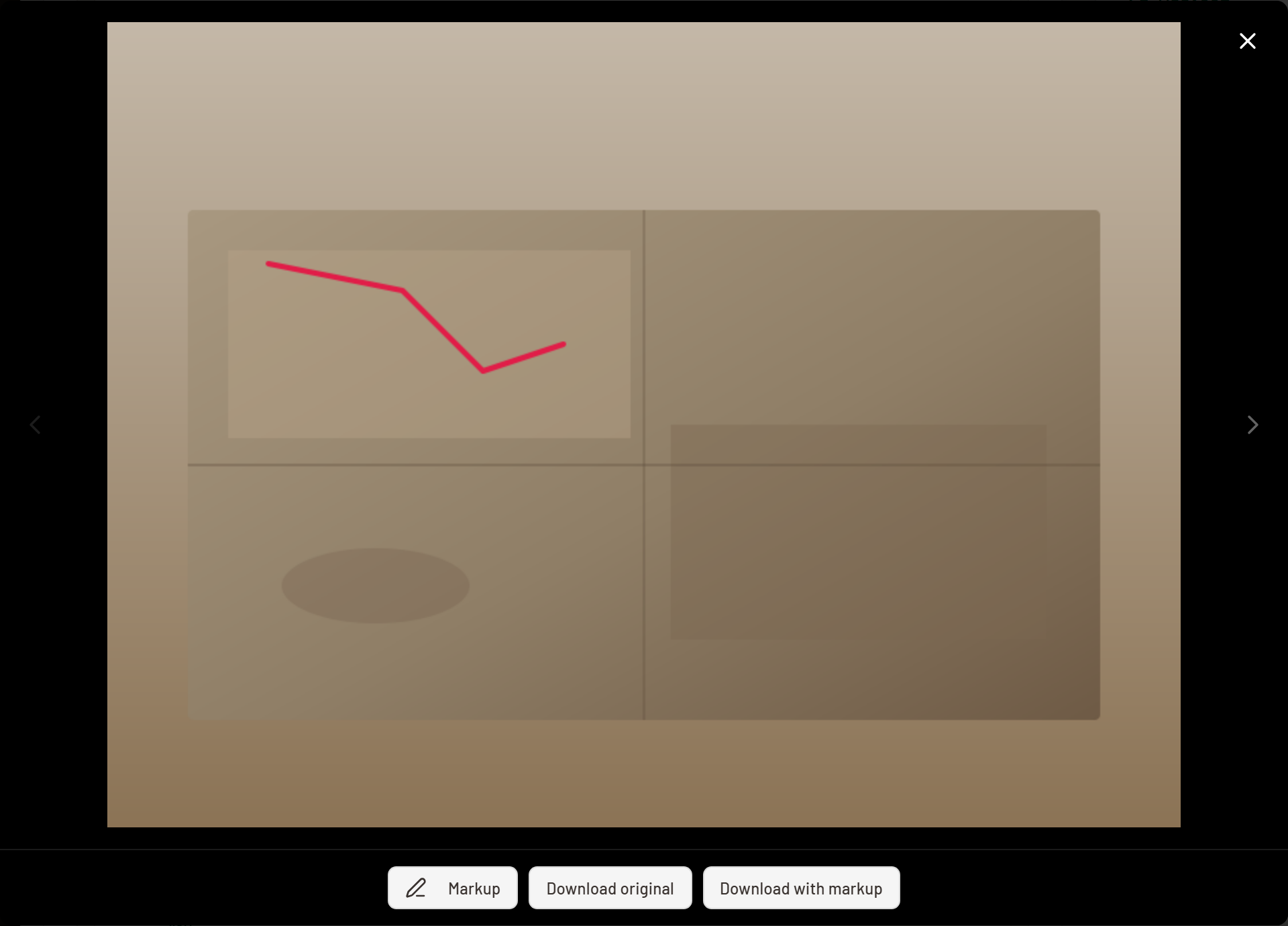
The markup is saved with that photo. Anyone who can see the photo sees the markup on it.
The original is never overwritten
Markup is stored as a layer on top of the photo, not burned into it. When you download a photo you can choose:
- Download with markup to get the photo with your drawing on it.
- Download original to get the photo exactly as taken.
Who can mark up a photo
- Tenant Admins can mark up any photo.
- Managers can mark up photos on their own projects.
- Contributors can mark up photos they uploaded themselves.
If you can see a photo but the Markup button isn't there, one of these rules is why. Ask the person who took the photo, or a project Manager, to add the markup.
Note that this is different from adding a photo: an item's assignee can attach new photos to their item, but marking up someone else's photo follows the rules above.
Common questions
Does markup change the original photo? No. Markup is a separate layer. Download original always gives you the unmarked image.
Why don't I see the Markup button? Contributors can only mark up photos they uploaded. Managers can mark up photos on their projects, and Tenant Admins can mark up any photo.
Can I undo a mistake? Yes. Undo removes your last stroke while you're drawing. Nothing is saved until you tap Save.
Is this the same markup used elsewhere in Formis? Yes. Task List photos use the same markup editor as photos in a form's Image Upload field.