Task List Widget: How Formis Task Lists Work
A Formis Task List is a checklist widget that can be added to any form. It's the building block behind Punch list, Safety observation, and Action items, and it works the same way on a custom form built from scratch. Each item has a status, an assignee, a due date, and can carry photos or be pinned to a spot on a drawing.
Task List is a platform building block, not a single feature
Formis is a configurable construction forms and workflow platform. The Task List widget is one of the pieces available to any form a team builds, alongside things like Image Upload and Configurable Lists. What makes a Task List a "punch list" or a "safety observation" isn't a separate feature, it's the same widget with different fields configured on it. A team can add a Task List to a custom form and shape it into whatever checklist their process actually needs.
What's on a Task List item
The exact fields depend on how a form's Task List is configured, but every item has:
- Description: what the item is, in plain language
- Assignee: who's responsible for it
- Due date: optional
- Status: configured on the widget. For example, the Punch list and Safety observation starter templates use Open, In progress, Ready for review, and Closed, and Action items uses Open, In progress, and Done.
- Photos: as many as needed, appended to a scrollable strip, if the form includes a photo column
- Pin location: an exact spot on a drawing, if the form's Task List supports pinning
Forms can add more fields on top of these, or remove the ones they don't need. The Punch list starter template adds Trade, Safety observation adds Hazard type and Severity, and a custom form can add whatever fields its process needs.
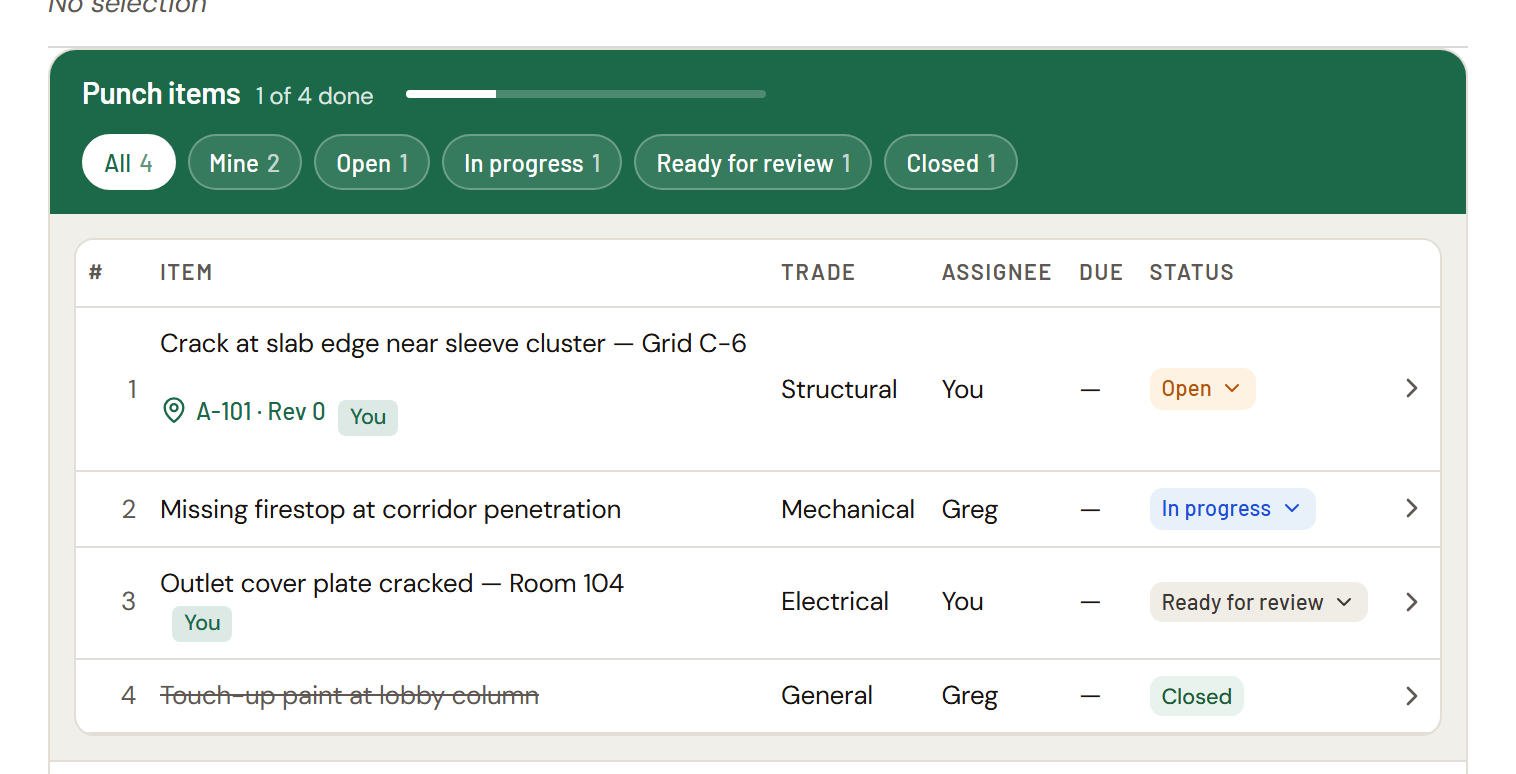
Filtering a task list
The chips above the list (All, Mine, and one for each status on that form) narrow what's shown instantly. Each count updates live as items change status. People who manage the list see every item; everyone else sees the items assigned to them.
Task List settings
Everything that makes one Task List behave differently from another is a setting on the widget, in the form designer. There's nothing special built into any starter template: each one is the same widget with these settings already chosen for you, and you can change any of them, on a starter template or on your own form.
Here's how our starter templates are configured out of the box:
| Setting | What it does | Punch list | Safety observation | Action items |
|---|---|---|---|---|
| Managed by | Project roles whose members can reopen, void, reassign, and close any item | Project Manager, Backup PM, Superintendent | Safety Manager, Project Manager, Backup PM | Project Manager, Backup PM |
| Assignee can close their own items | Whether assignees can mark their own item as finished, or must stop at Ready for review | Off | Off | On |
| Require a reason to reopen | Whether reopening an item asks for a note | On | On | Off |
| Require at least one item | Blocks submitting the form with an empty list | On | On | Off |
| Pin to drawing | Lets items be pinned to a spot on a drawing | On | On | Off |
| Ready for review email | Emails the reviewer when an item is marked Ready for review | On | On | Not used |
| Completion email | Emails the owner when every item is finished | On | On | Off |
New Task Lists added to a custom form start with Managed by set to Project Manager and Backup PM, assignees unable to close their own items, a reason required to reopen, and at least one item required.
Who can do what
- Assignees work their own items: update them, add photos, and move them up to Ready for review (or finish them, if the form allows it).
- The person who created the submission, its current reviewer, and anyone in a Managed by role can manage the whole list: close, reopen, reassign, change due dates, and add items after submit.
- Voiding an item is limited to the Managed by roles and Tenant Admins.
- Tenant Admins can do everything.
What counts is your role on the project, not a company-wide Manager seat. See Task List statuses and the review workflow for the details.
Task list vs. task board
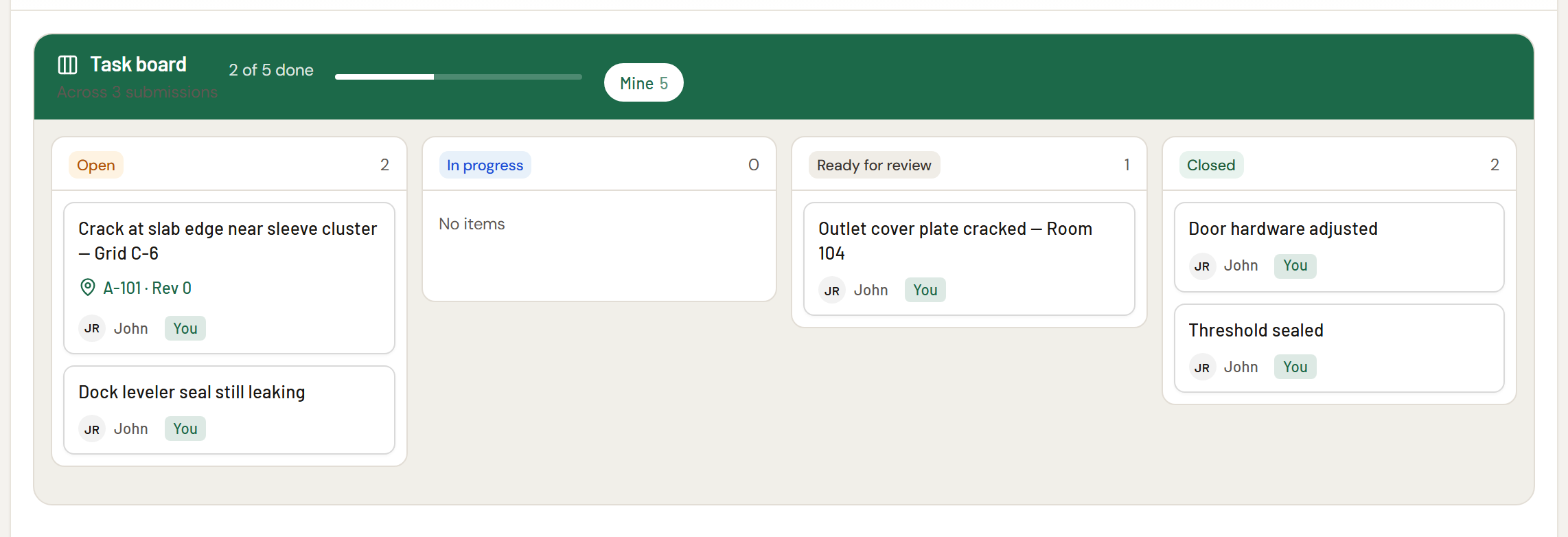
A "task list" is the checklist inside one submission. A "task board" is a separate view that pulls items from every submission of that form on a project into one board, useful for seeing everything open across a project at once instead of opening each submission individually.
Common questions
Who can change the settings on a Task List? Anyone who can edit the form in the form designer. Settings changes take effect right away, including on submissions that already exist.
Can I submit a Task List with no items? It depends on the Task List's Require at least one item setting. The Punch list and Safety observation starter templates, and new Task Lists you add, ship with it on. Action items ships with it off.
Is a Task List the same thing as Punch list or Safety observation? No. Punch list and Safety observation are starter templates that use the Task List widget with specific fields already configured. The widget itself can be added to any form and configured differently.
Can a custom form have its own Task List? Yes. The Task List widget is available on any form a team builds, with whatever fields the form's designer chooses to add.
What's the difference between the task list and the task board? The task list shows items on one submission. The task board aggregates items across every submission of a form on a project, so it's useful for a project-wide view rather than a single report.