Punch List Software: How Formis Punch Lists Work
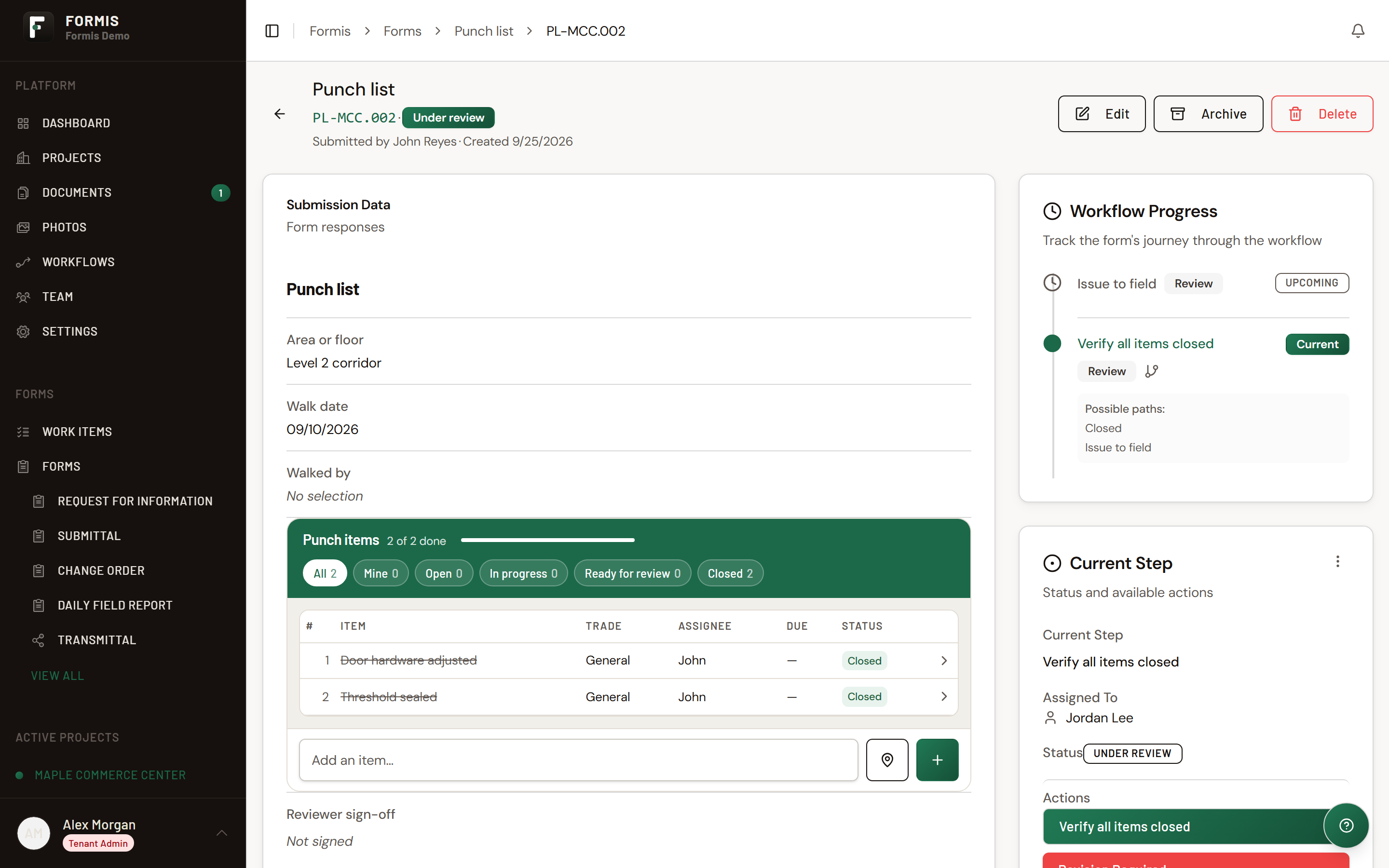
A Formis punch list is a checklist attached to a form, built from Formis's Task List widget, the same configurable building block behind Safety observation, Action items, and any custom checklist a team wants to build. Each item has a status, an assignee, a due date, and can be pinned to the exact spot on a drawing where the issue is. When every item is closed, the person who created the list is notified automatically to review and close out the submission.
Punch list is a starter template, not a fixed feature
Formis is a configurable construction forms and workflow platform. Teams build whatever forms their project needs: RFIs, daily field reports, inspections, change orders, or anything custom. Punch list is one of several starter templates Formis provides pre-built, so a team can start tracking punch items in minutes instead of designing a form from scratch. Everything below (the task list, pinning items to drawings, photos, the review workflow) is the same underlying engine available to any form on the platform, not something exclusive to punch lists.
What goes on a punch list item
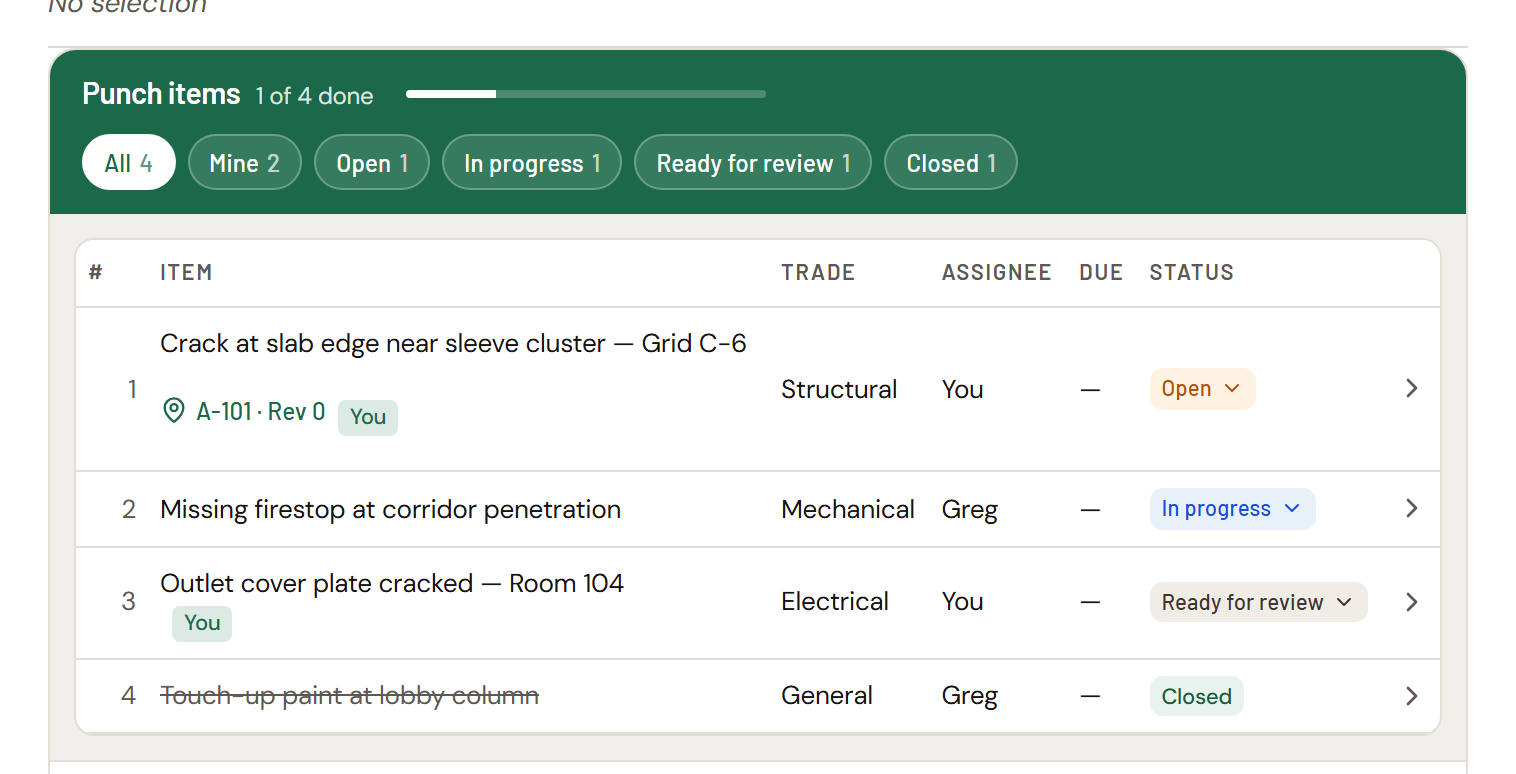
Every item tracks:
- Description: what's wrong, in plain language
- Trade: Electrical, Mechanical, Plumbing, Structural, or General
- Assignee: who's responsible for fixing it
- Due date: optional
- Status: Open, In progress, Ready for review, Closed
- Photos: as many as needed, appended, never overwritten
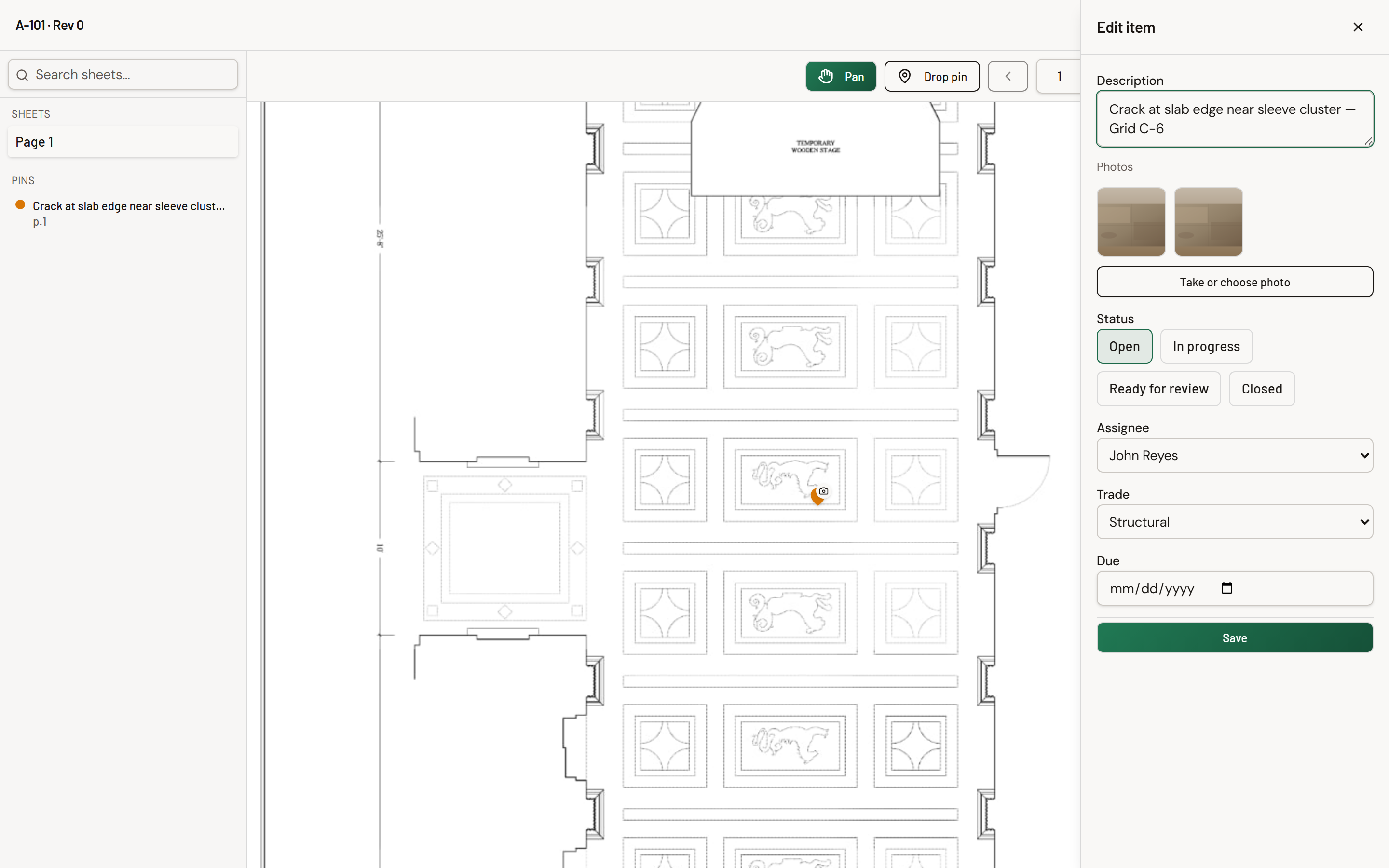
- Pin location: an exact spot on a drawing, if the issue is location-specific
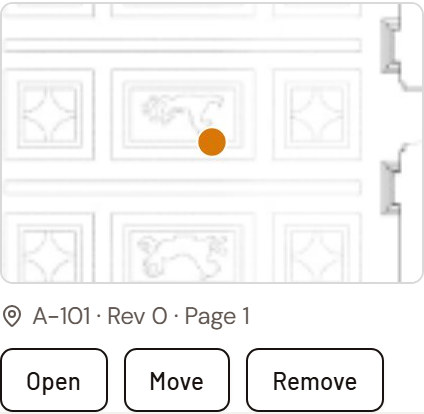
Pinning an item to a drawing
Tap the pin icon, choose the drawing, and tap the exact spot. The pin stays linked to that item and that drawing revision. Open it any time to see exactly where the issue is, move it, or remove it.
Walking the job from the drawing works the other way too: open the sheet, tap any pin, and that item slides out in a panel with its details and photos, without leaving the drawing. A pin with a camera badge has photos attached. See Pinning a Task List item to a drawing.
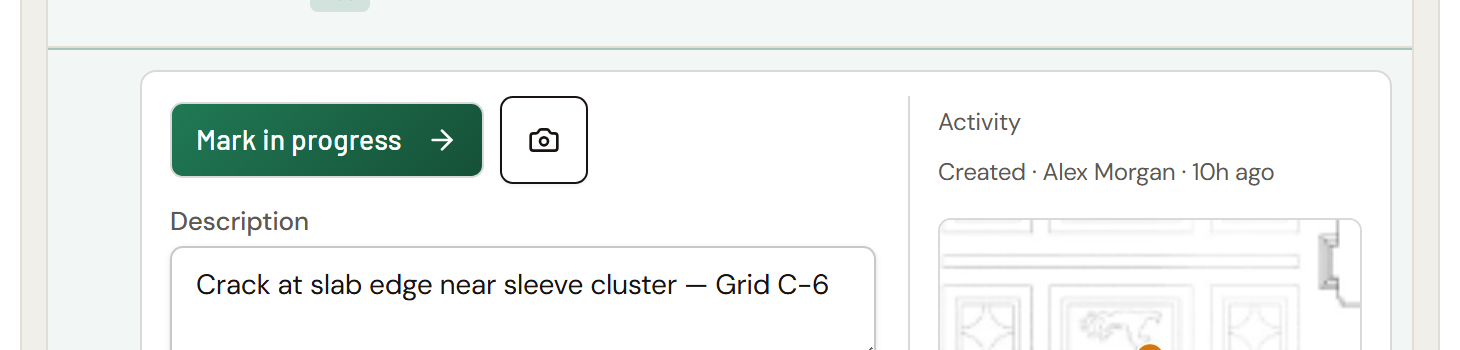
Documenting the fix with photos
An assignee attaches a photo as proof the work is done. Photos append to a scrollable strip, so the first photo taken doesn't disappear when a second is added. Each photo records when it was taken and, if it was tied to a pin, the exact drawing and coordinates at that moment, even if the pin is later moved.
Who manages a punch list
Who can do what on a punch list comes from the Task List widget's settings. Here's how we configured the Punch list starter template, and you can change any of it in the form designer.
Assignees work their own items and mark them Ready for review when the fix is done. As shipped, assignees can't close their own items, so someone else always signs off.
Closing, reopening, reassigning, and changing due dates are handled by the person who created the punch list, whoever is reviewing it, and anyone holding a Managed by role on the project: Project Manager, Backup PM, or Superintendent by default. Voiding a duplicate or mistaken item is limited to the Managed by roles and Tenant Admins. See Using Task Lists for every setting and what it does.
The starter template also requires at least one item before a punch list can be submitted.
How closeout works
Marking every item Closed doesn't finish the punch list by itself. The submission automatically waits until every item is closed, then the creator is emailed to review the actual work. From there:
- If everything checks out, they close the submission.
- If something's still wrong, they reopen the specific items that need more work, with a reason, and then choose Revision Required. That sends the submission back to waiting, and it moves forward to review again on its own once those items are closed. This can repeat as many times as it takes.
Reopening an item on its own doesn't send the submission back. Revision Required does, and it stays greyed out until at least one item has been reopened. See Task List statuses and the review workflow.
Common questions
Who can close a punch item? As the starter template is configured, not the assignee. They mark it Ready for review, and the punch list's creator, its reviewer, or a Project Manager, Backup PM, or Superintendent on the project closes it.
Is punch list the only thing Formis does? No. Formis is a general construction forms and workflow platform. Punch list is one pre-built starter template; teams can customize it or build entirely different form types on the same engine.
Does closing every item finish the punch list? No. Closing every item triggers an automatic review step. The creator is notified, checks the work, and either closes the submission or reopens specific items and chooses Revision Required for another round.
Can an item be tied to a specific spot on a drawing? Yes. Pinning an item links it to an exact location on a drawing revision. The pin can be moved or removed later without losing the item.
How many times can an item be reopened? As many as needed. There's no limit on review rounds between reopening an item and closing it again.
Drawing: Historic American Buildings Survey, Library of Congress.