Task List statuses and the review workflow
Every item in a Formis Task List widget moves through a set of statuses, such as Open, In progress, Ready for review, and Closed. When a form's workflow includes a Wait for tasks step, as the Punch list and Safety observation starter templates do, the workflow watches those statuses: the submission waits on its own until every item is closed, then goes to a reviewer who checks the actual work and either accepts it or sends specific items back.
Item statuses
Statuses are part of the Task List widget's configuration, so each form can have its own set.
How our starter templates are configured
Formis starter templates (Punch list, Safety observation, Action items) are ready-made forms built from the same Task List widget you can add to any form. Each one ships with its settings already chosen so you can use it right away. None of it is fixed: you can change any of these settings in the form designer, on a starter template or on your own form.
| Starter template | Statuses |
|---|---|
| Punch list, Safety observation | Open, In progress, Ready for review, Closed |
| Action items | Open, In progress, Done |
Ready for review is not Closed. It means the person doing the work is finished with their part. Someone else still checks the work and closes the item.
Assignees move their own items forward, up to Ready for review. Whether an assignee can also close their own item is a Task List setting, Assignee can close their own items. Turn it off when you want someone else to sign off on every item, or on when finishing an item is the assignee's call. The Punch list and Safety observation starter templates ship with it off; Action items ships with it on.
Who can manage a Task List
Anyone can work their own items. Managing a list (closing other people's items, reopening, reassigning, changing due dates, adding items after submit) is limited to:
- The person who created the submission.
- Whoever is reviewing it at the current workflow step, such as the closeout review.
- People in the list's "Managed by" project roles. This is a Task List setting in the form designer. See Using Task Lists for the roles each starter template ships with.
- Tenant Admins.
Voiding an item is limited further, to the Managed by roles and Tenant Admins. A company-wide Manager seat doesn't grant these rights on its own; what counts is your role on the project.
The workflow, step by step
Workflows in Formis are configurable, and any form can have its own. To save you time, we built a simple four-step closeout workflow into the Punch list and Safety observation starter templates. You can use it as is, change it, or build your own on any form:
- Issue to field. When the submission is submitted, each assignee gets one email listing the items assigned to them.
- Wait for tasks. The submission waits. There's nothing to click; it watches the item statuses and moves forward on its own the moment the last item is closed.
- Closeout review. The person who created the submission is notified and reviews the work.
- Accept or Revision Required. The reviewer either accepts, which closes the submission, or sends it back.
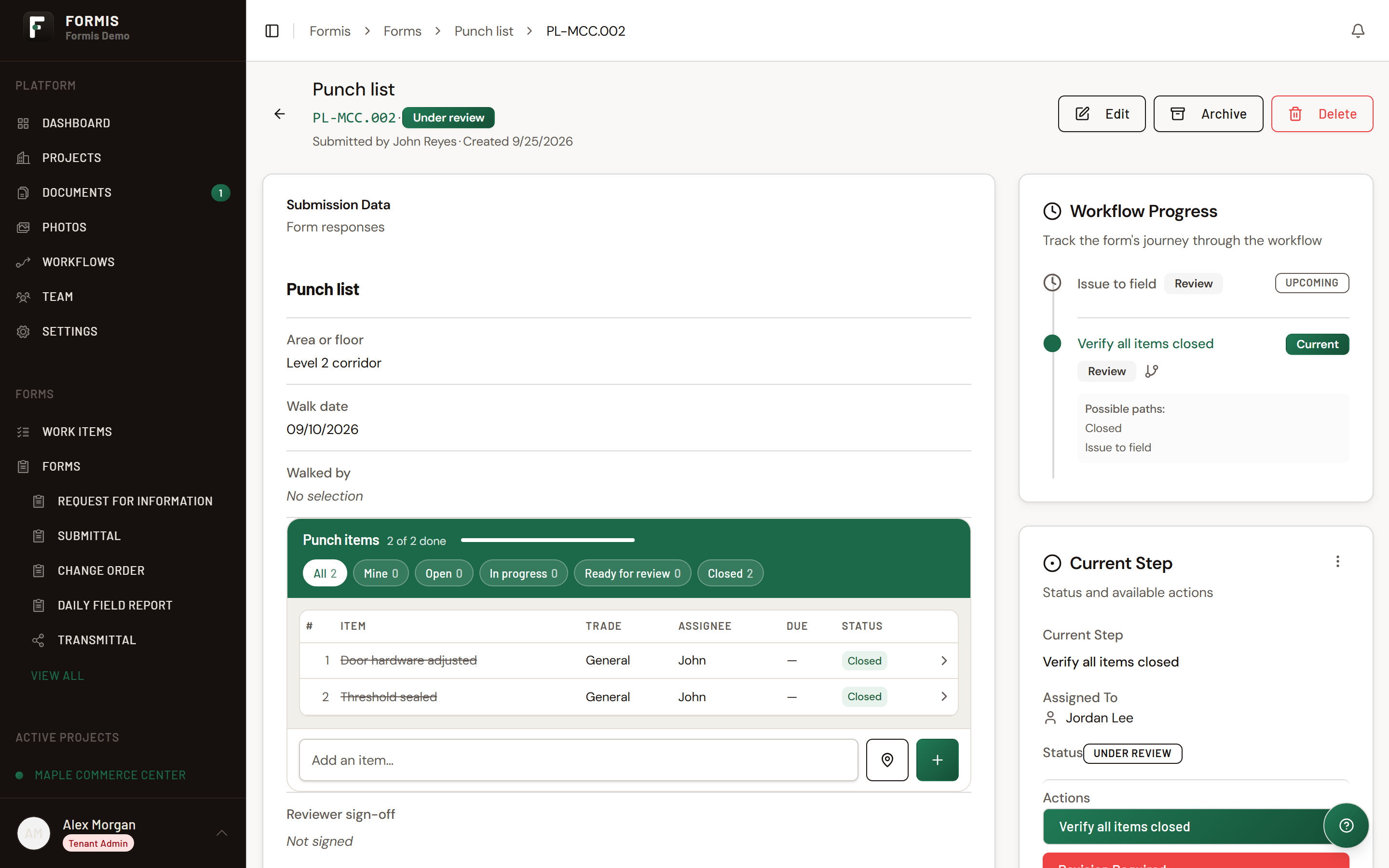
Sending work back: Revision Required
If the reviewer finds a problem, it takes two actions:
- Reopen the specific item or items that need more work, with a note explaining what's wrong. See Reopening a Task List item.
- Choose Revision Required. This sends the submission back to the Wait for tasks step.
From there it runs on its own again: once the reopened items are closed, the submission returns to closeout review. This loop can repeat as many times as it takes.
Why Revision Required is sometimes greyed out: it only becomes available once at least one item has been reopened. That prevents sending a submission back with nothing on it for anyone to work on.
Reopening an item doesn't move the submission by itself. Reopening is an item-level action. The submission only goes back to waiting when the reviewer chooses Revision Required.
Voided items
Voiding is for an item that shouldn't be on the list at all, such as a duplicate or something logged by mistake. Only the list's Managed by roles and Tenant Admins can void an item, and a reason is required.
A voided item stays visible in the list's history, but it doesn't count toward anything the workflow checks. If you void the last open item, the list is treated as finished: a submission waiting on its items moves forward to closeout review on its own, the same as if that item had been closed. At closeout, Revision Required stays greyed out, because there's nothing open to send back. If more work is needed, add a new item and Revision Required becomes available.
Voided items can't be reopened.
Empty lists
A Task List setting, Require at least one item, blocks submitting a form with an empty list. That prevents an empty punch list from starting a closeout with nothing to wait on. The Punch list and Safety observation starter templates ship with it on, as do new Task Lists you add to your own forms. Action items ships with it off.
A lighter workflow: Action items
We built the Action items starter template without a review gate. When it's submitted, assignees get their email and the submission completes right away. The items keep being tracked on the list, but nothing waits on them. See Action items guide.
Changing the workflow
Everything above is a starting point, not a fixed rule. In the workflow designer you can change who reviews, add steps, or remove the gate entirely. If you want independent sign-off, so the person who created a list isn't also the one approving it, point the closeout review step at a project role such as Project Manager instead of the creator. See Configure routing and approvals.
Common questions
Does closing every item close the submission? Not if the form's workflow has a review step after Wait for tasks, as the Punch list and Safety observation starter templates do. Closing the last item moves the submission to a closeout review. The reviewer then accepts it or sends items back.
Why is Revision Required greyed out? It needs at least one reopened item. Reopen the item that needs more work first, then choose Revision Required.
If I reopen an item, does the submission go back to waiting automatically? No. Reopening only changes that item. The reviewer chooses Revision Required to send the submission back.
What happens if I void the last open item? The list is treated as finished. A submission waiting on its items moves on to closeout review, where it can be accepted. To send work back instead, add a new item first.
What's the difference between Ready for review and Closed? Ready for review means the assignee is done. Closed means someone has checked the work and signed off on that item.